The adoption of Desktop as a Service (DaaS) solutions has emerged as a popular practice for organizations. This approach offers numerous advantages, including improved scalability, enhanced security, and reduced IT management overhead. DaaS is particularly valuable for scenarios where it might not be feasible to provide users with a dedicated company-owned device. Such as:
- Remote work environments
- Mergers and acquisitions
- Disaster recovery (DR) planning
- Organizations with geographically dispersed teams
- Seasonal/temporary workers
Microsoft has two primary DaaS offerings: Windows 365 and Azure Virtual Desktop. While both solutions provide virtual desktop environments, they cater to different use cases and have distinct characteristics.
In this article we will compare Windows 365 vs Azure Virtual Desktop. We will delve into their key differences, explore their pros and cons, pricing models, and suitability for certain scenarios. By understanding these distinctions, organizations like yours can make informed decisions about which DaaS solution best aligns with your specific needs and goals.
What is Azure VD?
Azure Virtual Desktop (AVD) is a cloud-based desktop and app virtualization service offered by Microsoft. It provides a scalable and secure platform for delivering virtual desktops to remote workforces.
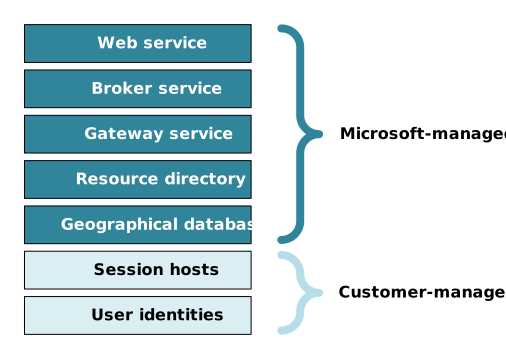
Compared to traditional Remote Desktop Services (RDS) architecture, where you need to manage everything from Remote Desktop Web to licensing and session host; with AVD you only need to manage session hosts and user identities, the rest is managed by Microsoft.
Azure VD provides two types of user experience/deployment models:
- RemoteApp: Individual applications are published as RemoteApps. Users can access these applications directly from a client device without requiring a full desktop session. The RemoteApp is rendered on the server and streamed to the client, providing a seamless user experience.
- Full Session: In this model, users are presented with a full virtual desktop environment. The entire desktop session, including the operating system and applications, is hosted on the server and streamed to the client. Users can access and interact with any applications installed on the virtual desktop.
Azure Virtual Desktop key features
- Multi-session virtualization: AVD supports multiple concurrent user sessions on a single VM, leveraging Windows Server Multi-Session OS to optimize resource utilization and reduce costs.
- Customizable VM configurations: Tailor VM size, network configurations, and storage options to meet specific performance and cost requirements.
- Centralized management: Integrate AVD with Azure management tools like Azure Resource Manager and Azure Policy to streamline operations, automate tasks, and enforce compliance.
- Robust security: Benefit from Azure’s built-in security features, including Azure Security Center, network security groups, and Azure Active Directory, to protect data and prevent unauthorized access.
You can read more about Azure VD here.
What’s Windows 365?
Windows 365, often referred to as Cloud PC, is another cloud-based desktop virtualization service from Microsoft. It delivers a fully managed Windows 10 and 11 desktop experience directly to your users’ devices. It offers a flexible and scalable solution for organizations looking to provide virtual desktops to their workforce.
This solution provides a simplified DaaS experience. By creating a provisioning policy and assigning a license to a user, a Windows 365 PC is automatically provisioned in the Azure cloud. Within a short time, the fully configured VD becomes available for use. Using Intune, applications and policies can be deployed to the Windows 365 PC like managing a physical on-premises device.
The provisioning policy specifies attributes such as:
- Base image
- Language
- Geographic region of the VM
While the VM operates within the Azure environment, it is not deployed within your specific subscription, restricting direct access to modify the CPU, RAM, GPU, and storage configurations. The VM’s size is determined by the purchased license. Notably, the VM operates continuously, ensuring its availability for user access whenever needed.
Windows 365 key features
- Cloud-native architecture: W365 runs entirely in the Microsoft Azure cloud. This eliminates the need for on-premises infrastructure.
- Microsoft managed infrastructure: Microsoft manages the underlying infrastructure, including hardware, operating system, and updates, reducing administrative burden for IT teams.
- Flexible deployment models: Windows 365 offers two deployment options: Cloud PC and Business PC.
- Cloud PC provides a fully managed Windows desktop experience that can be accessed from any device with an internet connection.
- Business PC extends your existing on-premises Windows PCs to the cloud, providing a hybrid desktop experience.
- Robust security: Leverages Azure’s security features, including Azure Security Center, network security groups, and Azure Active Directory, to protect data and prevent unauthorized access.
- Integration with Microsoft 365: Seamlessly integrates with Microsoft 365 services for a unified user experience and streamlined management.


Written by Lucy Camero Team Venti Brand Manager
September 12, 2024