Auto Attendants and Call Queues in Microsoft Teams

Effective communication is essential for modern businesses, specifically, harnessing the power of Microsoft Teams Enterprise Voice can empower your organization to excel. With the integration of Auto Attendants (AA) and Call Queues (CQ) into your communication strategy, you can enhance your capabilities for supporting both partners and customers.
In this article, we will explore the primary benefits of incorporating Auto Attendants and Call Queues in Microsoft Teams, as well as provide insight into integrating Microsoft Teams Call Queue Reporting and Analytics. This will shed light on how these features can revolutionize your business communication and customer support.
Key Benefits of Auto Attendants and Call Queues
- Improved customer experience: Auto Attendants provide a professional and efficient first impression, guiding callers to the appropriate department or agent.
- Enhanced productivity: Call Queues optimize call routing, ensuring that incoming calls are handled efficiently and reducing wait times.
- Scalability: Both AA and CQ can easily adapt to your organization’s growth, accommodating increasing call volumes and new departments.
- Cost-effective: By automating routine tasks and reducing manual call handling, AA and CQ can contribute to cost savings.
Microsoft Teams Auto Attendants
Having someone to answer and direct calls at all hours is a major business benefit.
The primary purpose of a Teams Phone Auto Attendant is to direct a caller to an appropriate person based on the caller’s input to the provided menu options. Through AA, callers can be directed to specific call queues where they wait to talk to the next available agent. Different call routing options can be specified for business hours, off hours, and holidays.
You can create menu prompts by using text-to-speech (system-generated prompts) or by uploading a recorded audio file. Speech recognition accepts voice commands for hands-free navigation, but people calling in can also use the phone keypad to navigate menus.
Each Auto Attendant has a specific language and time zone. If you do business in multiple languages or multiple parts of the world, you can create as many different auto attendants (AA) as you need to accommodate your callers.
How to set up auto attendant in Teams
You can configure AA to allow callers to search your organization’s directory, either by name or by extension number. Follow these steps to set up your Auto Attendant.
Microsoft Teams Call Queues
Sometimes calls exceed companies’ internal capacity. To deal with internal capacity you can use Microsoft Teams Call Queues, which is analogous to a waiting room in a physical building.
Call queues provide a method of routing callers to people in your organization who can help with a particular issue or question. Incoming calls will be distributed one at a time to agents in the queue.
Callers wait on hold while calls are routed to the agents in the queue. Call queues are commonly used for sales and service functions.
Call queues provide:
- A greeting message.
- Music while people are waiting on hold in a queue.
- Call routing – in First In, First Out (FIFO) order – to agents.
- Handling options for queue overflow and timeout.
How to setup Call Queue in Teams
Setting up a call queue in Microsoft Teams involves several steps, and it allows you to route incoming calls to a group of people in a specific order. Follow these steps to set up a Call Queue in Teams.

Teams PowerPack by Team Venti
Customer experience tools natively built for Microsoft Teams. Extend your Teams without leaving the Microsoft 365 ecosystem
What do I need to configure Auto Attendants & Call Queues in Microsoft Teams?
To configure Auto Attendants and Call Queues in Microsoft Teams, you need the following resources:
- A resource account for each auto attendant and each call queue.
- A free Phone System – Virtual User license for each resource account.
- One Microsoft number, direct routing number, or a hybrid number for each resource account you want to be directly dialable.
- The service number may be a toll or toll-free number.
Leveraging Teams PowerPack – Call Analytics
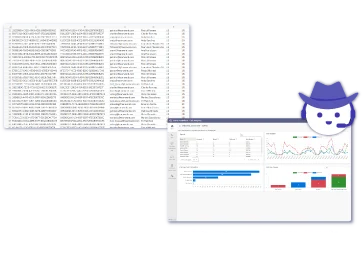
While Microsoft Teams offers basic call reporting, Teams PowerPack – Call Analytics provides a comprehensive solution for in-depth analysis. Key features include:
- Advanced search and filtering: Easily search for specific calls based on various criteria, such as caller ID, call duration, and agent.
- Performance metrics: Track key performance indicators (KPIs), including average wait times, abandonment rates, and agent utilization.
- Reporting and analysis: Generate customized reports to gain valuable insights into your call center operations.
By implementing Auto Attendants and Call Queues in Microsoft Teams, you can significantly enhance your organization’s communication capabilities. With the added power of Teams PowerPack – Call Analytics, you can gain valuable insights into your business and make data-driven decisions to improve customer satisfaction and operational efficiency. Try it now, start you 30-day free trial, money-back guarantee.
Interested in Teams PowerPack – Call Analytics licensing? Contact our sister brand, the 365 Cloud Store. As Microsoft CSP, they can assist you to make the most out of your licenses and save 3% or more compared to Microsoft published prices.

Sign up to learn more
Get news, updates, and insights about Microsoft solutions, technologies, and best practices.