In the world of remote work and virtual collaboration, Microsoft Teams has emerged as a leading platform for team communication and collaboration. With the growing reliance on Teams for meetings and calls, organizations need to ensure the quality and efficiency of their communication. This is where Teams PowerPack – Call Analytics come into play, providing invaluable insights into call-related metrics that can help organizations enhance their communication and productivity.
In this blog post, we’ll explore some of the key metrics to monitor in a Microsoft Teams Call Analytics Report. 
General Calls Report
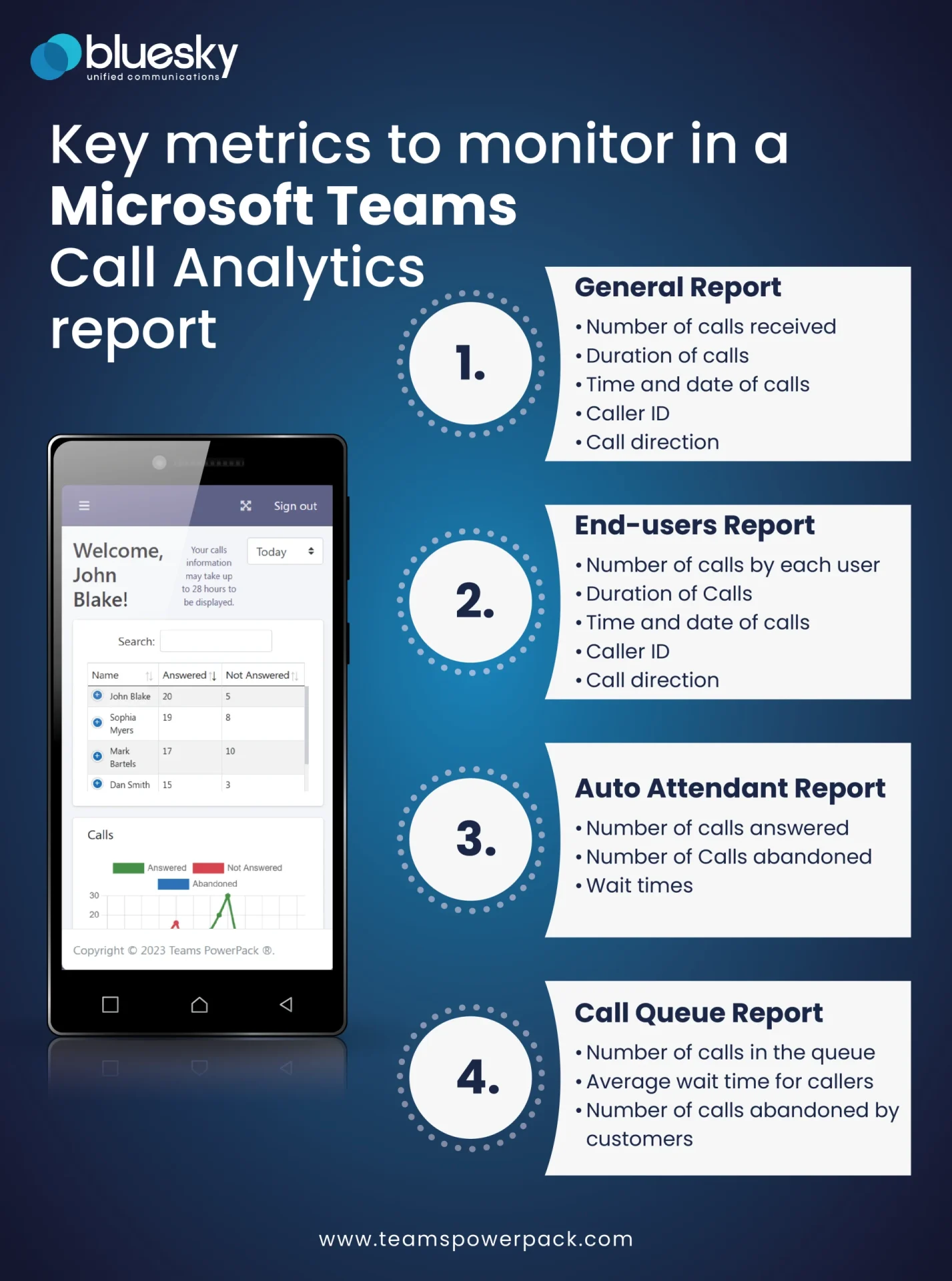
The “General Calls Report” is your go-to resource for gaining a comprehensive understanding of your organization’s call activities. It includes vital data such as:- Number of Calls Received: This metric provides insight into the call traffic your organization experiences, helping you assess the volume of incoming calls.
- Duration of Calls: Knowing the average call duration can help you evaluate the efficiency of your communication and identify any anomalies.
- Time and Date of Calls: Understanding when calls are most active and when there’s a lull can help you schedule meetings and allocate resources more effectively.
- Caller ID: Identifying the source of calls is crucial for tracking communication with external parties and ensuring security.
- Call Direction: Differentiating between inbound and outbound calls helps in analyzing your organization’s outreach and responsiveness.
Users Report
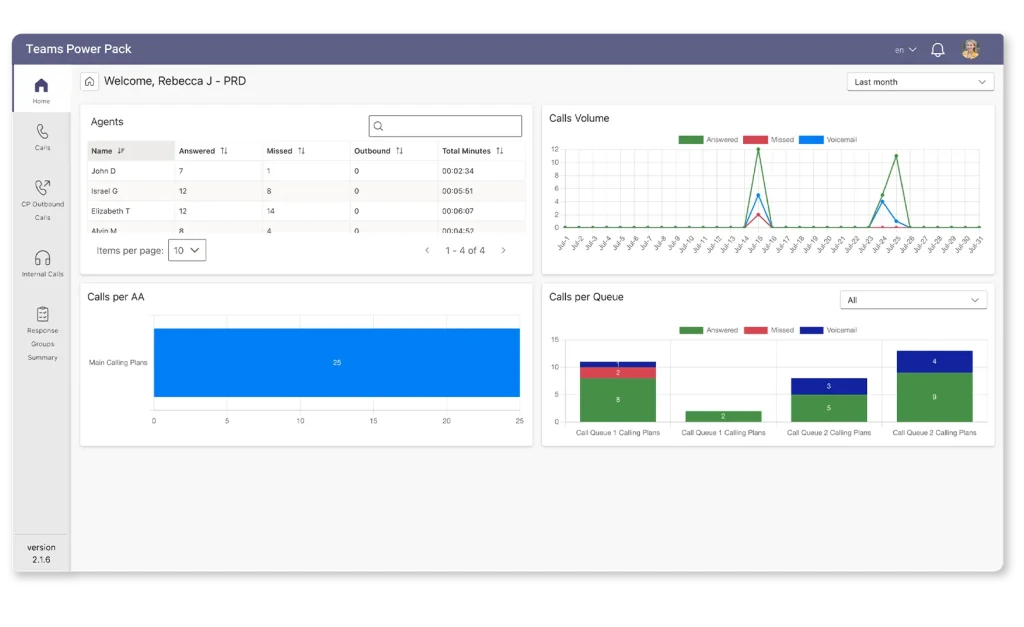
The “Users Report” dives deeper into the call data, offering detailed information about individual users within your organization. It covers metrics like:- Number of Calls Made by Each User: This metric allows you to assess the call volume and productivity of specific team members.
- Duration of Calls: Evaluating call durations at the user level can help you identify potential areas for improvement in communication or training.
- Caller ID: Recognizing who users are interacting with is essential for tracking client or customer communication.
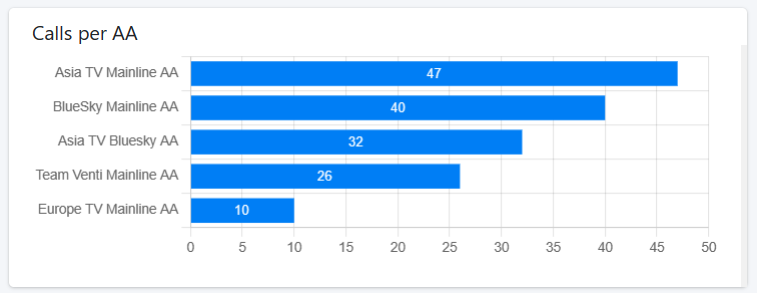
Auto Attendant Calls Report
Auto attendants play a crucial role in managing and directing incoming calls efficiently. Monitoring this report helps you understand how effectively your auto attendant is performing, with data such as:- Number of Calls Answered: This metric tells you how many calls were successfully handled by the auto attendant.
- Number of Calls Abandoned: Understanding how many callers gave up waiting for assistance provides insights into potential issues with your phone system.
- Wait Times: The average wait time before callers are connected to a live person is a vital indicator of customer satisfaction and service quality.

Call Queue Report
In organizations with a high volume of calls, the “Call Queue Report” is a goldmine of information. Metrics to keep an eye on include:
- Number of Calls in the Queue: This metric helps you gauge the demand for your services and allocate resources accordingly.
- Average Wait Time for Callers: Minimizing wait times is crucial for enhancing customer experience, and this metric shows you where improvements can be made.
- Number of Calls Abandoned by Customers: A high abandonment rate can signal inefficiencies in your call-handling processes.
Metrics of Microsoft Teams Call Analytics for technical troubleshooting
- Connection Information: It offers details such as the source, display name, platform, and product family related to the call.
- Network Details: Metrics like bandwidth issues, connection type, and DNS suffix are available, aiding in diagnosing network-related problems.
- Device Information: It provides data on capture and rendering devices, audio quality, and glitch rates, helping identify hardware issues.
- Stream Information: Users can assess audio quality, network jitter, bandwidth estimates, packet loss rates, and more, aiding in understanding call performance.
- Audio Quality: An overall assessment of audio quality is provided, enabling users to gauge call clarity.

Experience Teams PowerPack – Call Analytics with no commitment
Teams PowerPack enables business managers and IT staff to analyze calls, track costs, assess resource utilization, generate reports, and make informed decisions based on data.
It allows users to monitor call performance and quality by call queue, auto attendant, and end-users in one place. Teams PowerPack – Call Analytics has a user-friendly interface, provides native reporting of Teams data, and offers powerful search and filtering tools for efficient analysis.
Originally written by Iovalli Acevedo · Marketing Manager

Updated by Mercedes Leon
March 26, 2026